> For the complete documentation index, see [llms.txt](https://daton-sarasanalytics.gitbook.io/daton/llms.txt). Markdown versions of documentation pages are available by appending `.md` to page URLs; this page is available as [Markdown](https://daton-sarasanalytics.gitbook.io/daton/integrations/data-sources/databases/amazon-aurora-mysql/how-to-integrate-amazon-aurora-with-daton.md).
# How to Integrate Amazon Aurora with Daton
This subtopic provides step-by-step instructions to create Amazon Aurora integrations in Daton, detailing the prerequisites, the integration process, and important notes.
### Prerequisites
Before we get started, make sure you have:
* An AWS Aurora and a Daton account
* AWS Aurora Host Name
* AWS Aurora Port Number
* AWS Aurora User Name
* AWS Aurora User Password
* AWS Aurora Database Name
### Integrate your Amazon Aurora MySQL Database with Daton
1. [Log in](https://daton.sarasanalytics.com/login) to your existing Daton account and search for Amazon Redshift in the list of Connectors, then click **Configure**.
2. Enter the following details and click **Authenticate**:
* Integration Name
* Replication Frequency
* Replication Start Date
**Note** that the Integration Name will be used to create the integration tables and cannot be modified later.
3. **Select** your Amazon Aurora Database Schema(s) data to be replicated. For the same, provide the following credentials and click **Next.**
* AWS Aurora Host Name
* AWS Aurora Port Number
* AWS Aurora User Name
* AWS Aurora User Password
* AWS Aurora Database Name
You can also secure your authentication by SSH tunneling.
For further information, refer to the FAQs section on ["How to Enable SSH Tunneling during a Database Source Authentication?"](/daton/faqs/faqs/how-to-enable-ssh-tunneling-during-a-database-source-authentication.md)
4. Post Database Authentication, you will be prompted to choose schemas from the list. **Select** the desired Schemas and click **Next.**
5. **Select** all the Tables as per requirement and **Configure** the schema that you wish to create in the destination before clicking the **Next** button.
Note:
* You will have to check at least one Table from each of the previously selected Schemas to proceed further.
* You can also customize the replication frequency and replication start date of each desired table separately. You may find this functionality under the advanced settings of every selected table.
6. Select all the Columns you require for each table and **Submit** the integration.
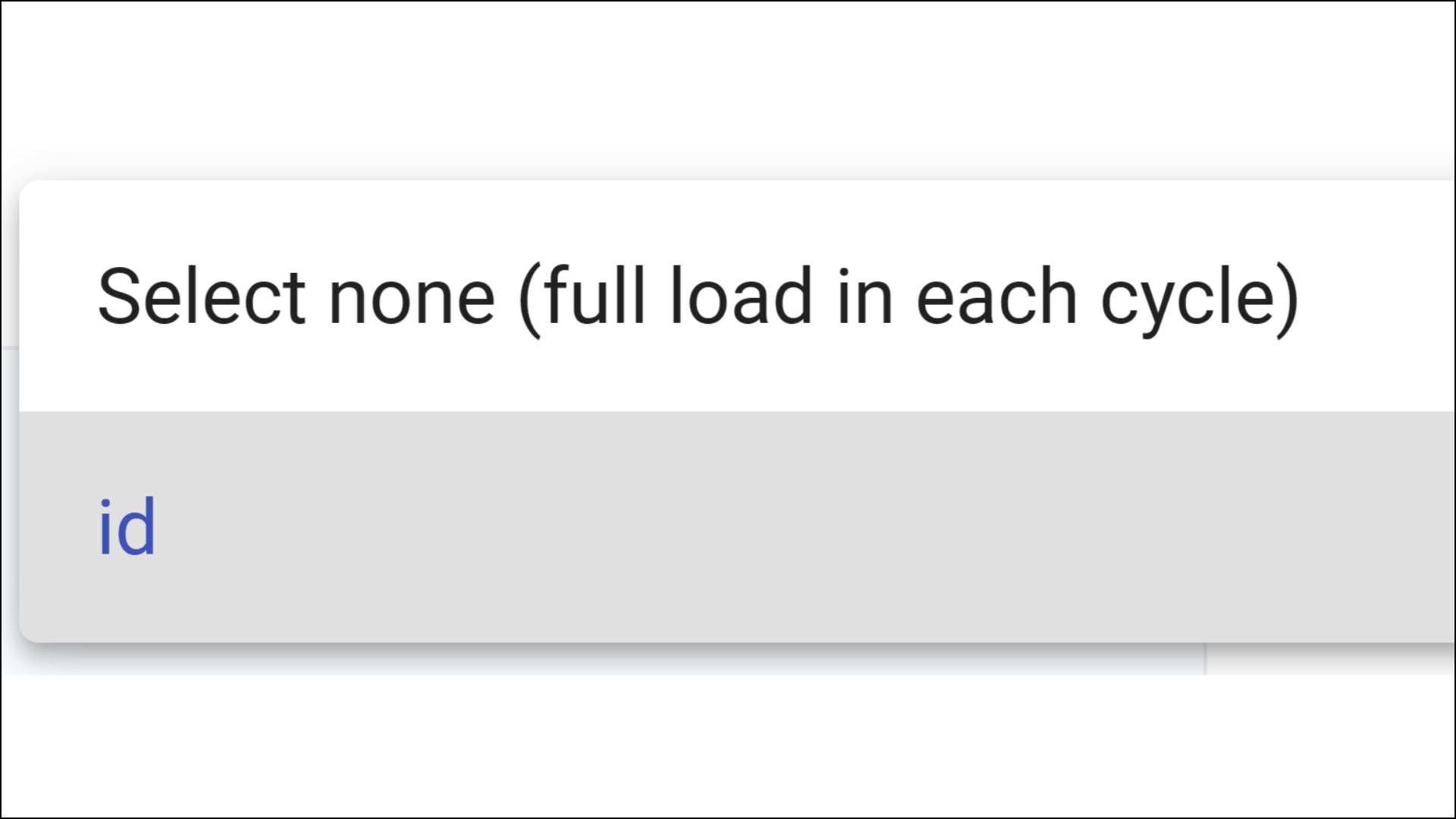
It's recommended to select a replication field for each of the tables. Selecting **'None'** will lead to full table replication. Learn more about [Replication Fields](/daton/platform/features/data/data-replication-in-daton/replication-fields.md) here.
\
**Note** that you will be prompted to select the destination for your Database.
7. Select the destination for your source and click **Confirm**. An integration successful message will be displayed.
## Important Note
* Integrations would begin in the Pending state and change to the Active state once the first job successfully loaded data into the configured warehouse.
* Users can check job status and process logs from the integration details page by clicking on the integration name in the active list.
* Users can Re-Authenticate, Edit, Clone, Pause, or Delete the integration at any moment by clicking on settings. You can also adjust the frequency and history of the integration.
* On the Sources page, click Integration to access each table in your integration. The page also shows the state of each table, the last replicated time, and the Reload access buttons.
---
# Agent Instructions
This documentation is published with GitBook. GitBook is the documentation platform designed so that both humans and AI agents can read, navigate, and reason over technical content effectively. Learn more at gitbook.com.
## Querying This Documentation
If you need additional information that is not directly available in this page, you can query the documentation by asking a question.
Perform an HTTP GET request on the following URL with the `ask` and `goal` query parameters:
```
GET https://daton-sarasanalytics.gitbook.io/daton/integrations/data-sources/databases/amazon-aurora-mysql/how-to-integrate-amazon-aurora-with-daton.md?ask=&goal=
```
`ask` is the immediate question: it should be specific, self-contained, and written in natural language.
`goal` is what the user is ultimately trying to achieve, the reason they need the answer. Sharing it helps GitBook give you a better, more relevant answer. A goal is most helpful when it describes the outcome the user wants rather than restating the question. For example, with `ask=how do I create an API token`, a goal like `automate deployments from our CI pipeline` lets GitBook tailor the answer to that use case.
The response will contain a direct answer to the question and relevant excerpts and sources from the documentation.
Use this mechanism when the answer is not explicitly present in the current page, you need clarification or additional context, or you want to retrieve related documentation sections.